Web Interface
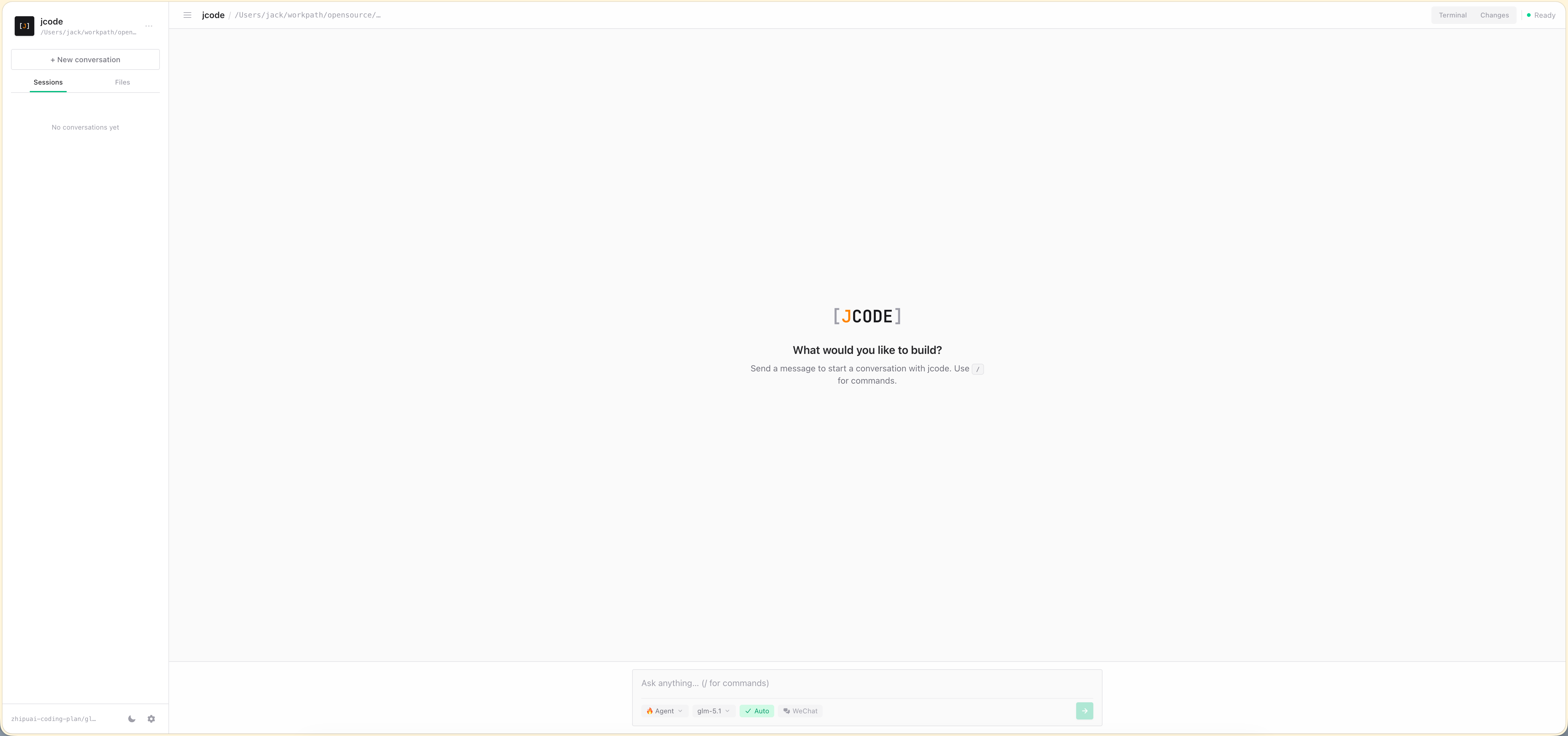
jcode includes a browser-based interface for users who prefer a visual UI over the terminal. The web UI provides chat, file browsing, terminal access, and full agent control.
Starting the Web Server
jcode web
Options:
| Flag | Default | Description |
|---|---|---|
--port | 8080 | HTTP server port |
--host | 127.0.0.1 | Server host/interface |
Then open http://localhost:8080 in your browser.
By default, the server binds to 127.0.0.1 (localhost only). Use --host 0.0.0.0 to allow access from other machines.
Features
Chat Interface
Send messages to the agent and see streaming responses. Tool calls and results are displayed inline, just like in the TUI.
File Browser
Browse your project directory and view file contents directly in the browser.
Built-in Terminal
Open a full PTY terminal in the browser. Run any command as if you were in a local terminal.
Session Management
List, view, and switch between sessions. Start a new session or resume a previous one.
Model & Settings
Switch models, toggle approval mode, and manage configuration — all from the web interface.
Theme / Dark Mode
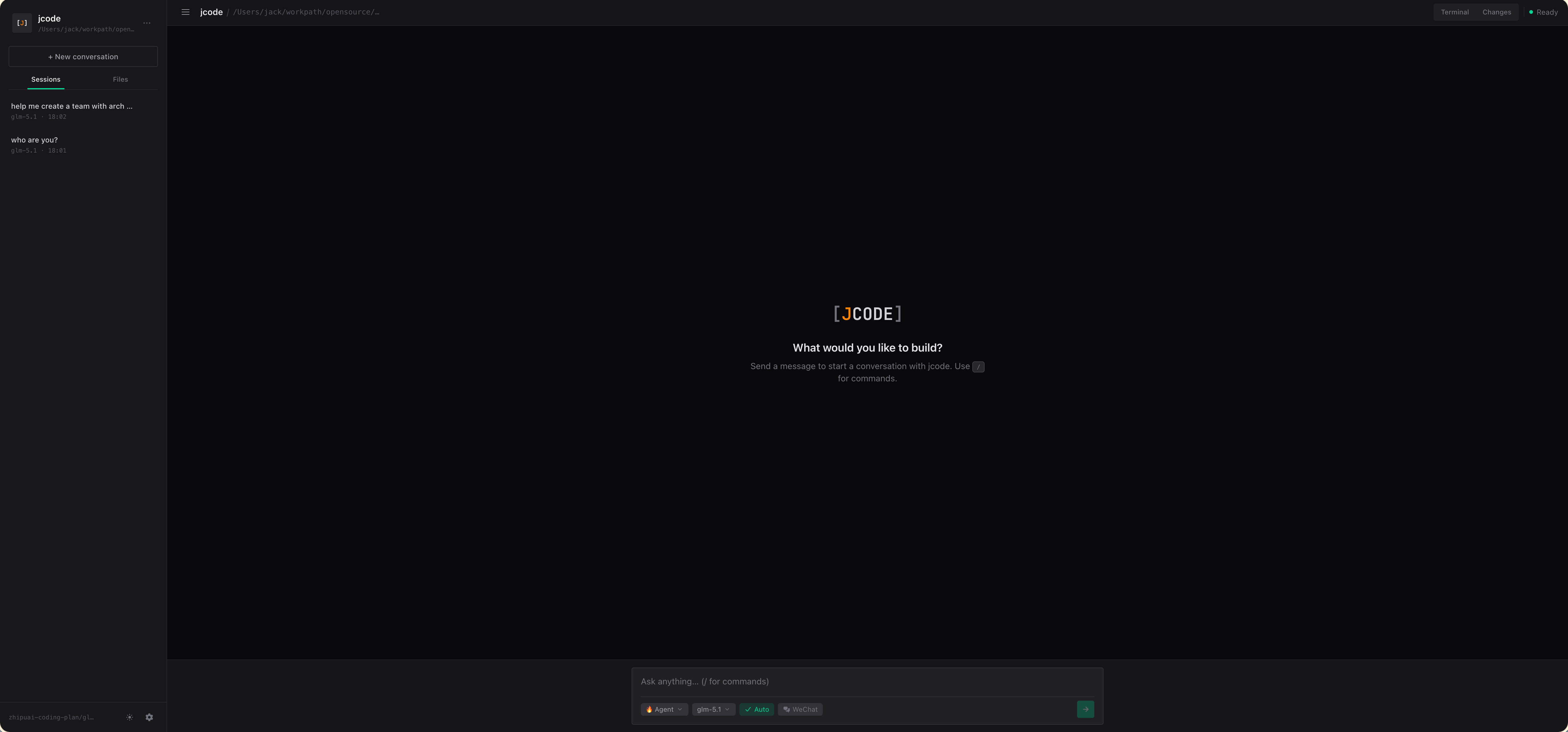
Toggle between Light, Dark, and System themes from the settings dialog. The theme preference is persisted in localStorage and applied instantly across all components. When set to System, the UI follows your OS appearance preference automatically.
Project Switching
Switch between different project directories without restarting the server.
API Endpoints
The web server exposes a REST API for programmatic access:
| Endpoint | Description |
|---|---|
POST /api/chat | Send a message to the agent |
POST /api/stop | Cancel current execution |
GET /api/events | SSE stream of agent events |
GET /api/sessions | List sessions |
POST /api/sessions | Create new session |
GET /api/models | List available models |
POST /api/model | Switch active model |
POST /api/mode | Switch agent mode |
GET /api/todos | Get current todo items |
GET /api/files | Browse directory |
POST /api/exec | Execute a shell command |
POST /api/approval | Approve/reject a tool call |
GET /api/mcp | List MCP servers and status |
GET /api/skills | List available skills |
POST /api/pty | Create a terminal session |
GET /api/channel | Get channel connection status |
POST /api/channel/login | Start channel login (returns QR code) |
POST /api/channel/logout | Disconnect channel |
POST /api/channel/enable | Enable notifications |
POST /api/channel/disable | Disable notifications |
The REST API makes it easy to integrate jcode into your own tools and workflows.