IDE Integration (ACP)
jcode supports integration with IDEs through the Agent Client Protocol (ACP), allowing you to use the AI coding agent directly within your editor.
What Is ACP?
The Agent Client Protocol is a standard for connecting AI coding agents to editors and IDEs. When you run jcode acp, it starts a headless JSON-RPC server on stdio — no TUI, just protocol-level communication designed for programmatic integration.
Prerequisites
Make sure jcode is installed and in your PATH:
which jcode
If not in PATH, use the full path in the IDE configuration below.
Zed
Zed has native ACP support.
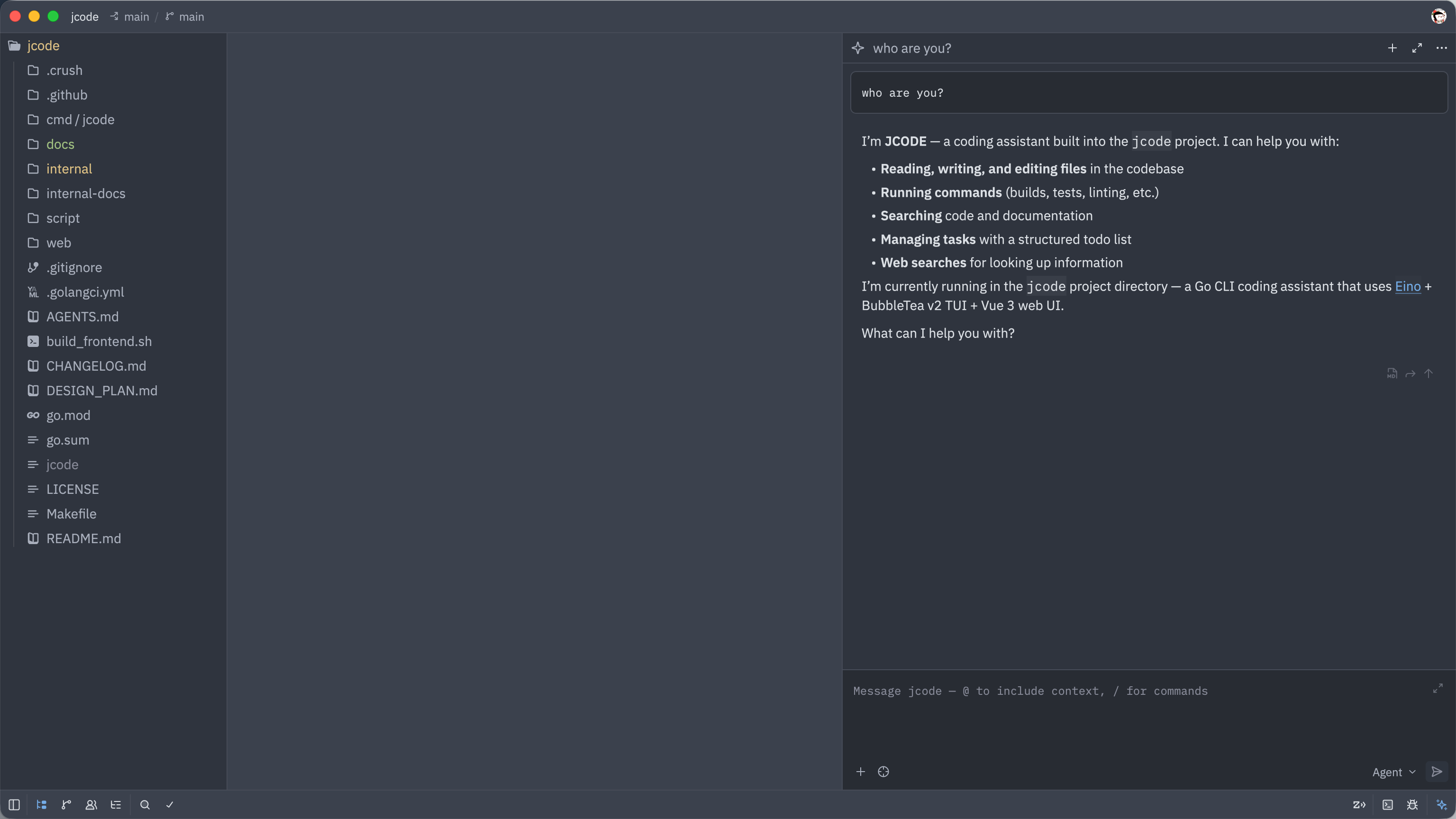
Add the following to Zed’s settings file (~/.config/zed/settings.json):
{
  "agent_servers": {
    "jcode": {
      "type": "custom",
      "command": "jcode",
      "args": ["acp"],
      "env": {}
    }
  }
}
| Field | Description |
|---|---|
type | Fixed value "custom" |
command | Path to jcode binary. Use full path if not in PATH |
args | ["acp"] to start in ACP mode |
env | Environment variables (usually empty) |
After saving, you can create jcode sessions in Zed’s Agent panel.
JetBrains IDEs
JetBrains IDEs (IntelliJ IDEA, GoLand, PyCharm, WebStorm, etc.) support ACP through the AI Chat plugin.
If you don’t have a JetBrains AI subscription, enable llm.enable.mock.response in the Registry to access the AI Chat feature. Press Shift twice and search for “Registry” to open it.
In the AI Chat panel menu, click “Configure ACP agents” and add:
{
  "agent_servers": {
    "jcode": {
      "command": "/usr/local/bin/jcode",
      "args": ["acp"],
      "env": {}
    }
  }
}
command must be the full path to the jcode binary. Run which jcode in your terminal to find it.
After saving, select jcode in the AI Chat Agent selector.
VS Code / Cursor
VS Code and Cursor can integrate with jcode as an ACP agent. Add to your settings.json:
{
  "chat.agent.configs": [
    {
      "name": "jcode",
      "command": "jcode",
      "args": ["acp"]
    }
  ]
}
Or use the Command Palette → “Chat: Add Agent” to configure.
How It Works
When you start an ACP session through your IDE:
- The IDE launches
jcode acpas a subprocess - Communication happens over stdin/stdout using JSON-RPC
- jcode provides all its built-in tools (file read/write, search, execute, etc.)
- Tool calls and approvals are handled through the IDE’s agent UI
- All MCP servers configured in
~/.jcode/config.jsonare available
The agent uses the same model configuration, skills, and tools as the terminal TUI — just with a different interface.
Troubleshooting
| Problem | Solution |
|---|---|
| Agent not appearing | Verify jcode acp works from your terminal |
| Command not found | Use full path: which jcode to find it |
| Model errors | Run jcode doctor to verify API connectivity |
| No tools available | Check ~/.jcode/config.json for valid provider config |